Clibu Notes 1.00.00 — Faster, Smoother, and Packed With Improvements

We’re excited to announce the release of Clibu Notes Version 1.00.00, a major update focused on speed, stability, and a more intuitive user experience.

This release represents one of the most significant performance upgrades we’ve delivered to date, along with a long list of refinements and fixes that make Clibu Notes feel better than ever.

⚡ Blazing‑Fast Performance

The headline feature of this release is a complete overhaul of the code that builds and displays the Matches results list. The difference is dramatic. For example:

  • A list of 800 notes that previously took 4–5 seconds to display now appears in under 1 second.

These optimizations ripple throughout the app, improving responsiveness in multiple areas of the interface. Clibu Notes was already fast — now it’s even faster.

🐞 A Thorough Bug Hunt

We’ve also taken the time to track down and fix a wide range of issues and annoyances. Many of these were subtle edge cases that only surfaced in specific workflows, but collectively they make a big difference to everyday usability.

Usability Enhancements & Behaviour Improvements

This update includes a wide range of refinements that make everyday use more predictable and intuitive.

🔍 Smarter, More Predictable Search

Search is one of the most important features in Clibu Notes, and this update makes it more consistent and intuitive:

  • Switching Space → All Notes during search now clears any tree selection so you see all matching notes.
  • If you change Spaces while search is active and the current tree selection no longer matches the search criteria, search is automatically turned off so the correct note is shown.
  • The editor toolbar now displays a match count and the current match position, right beside the Next/Previous buttons.
  • The selected match updates correctly when switching between editors.
  • Clicking the Home icon now clears the matches selection, updates the browser address bar to the Dashboard note, and opens the Matches panel if it was closed.

🧭 Improved Navigation & Tree Behavior

Navigation through notes, tags, and spaces is now more consistent:

  • “Select the Space for this Note” correctly navigates to child Spaces in nested hierarchies.
  • Viewed counts update reliably across notes tree, matches list, backlinks, and more.
  • Pressing Enter in Notes Tree Move now moves the note when the entered text matches a note title.
  • Filters toggled off now scroll to the selected note or tag tree item.
  • Breadcrumb clicks in the matches list now correctly switch to the notes tree and select the note.
  • When the notes tree is set to Updated, editing a note no longer causes the matches list to jump around — it now scrolls directly to the edited note. Share users can no longer move notes outside of their permitted Space.
  • The Spaces dialog can now be closed with Escape.
  • Disabled menu items now use lighter text for clearer visibility.
  • Smartphone navigation between Notes and Tags trees no longer causes sideways sliding.

Tags & Tagging

  • Creating a new tag no longer prompts to turn off Only show Tags with Notes in this Space — Clibu Notes now handles this automatically.
  • Adding a tag in the editor no longer shows an error if the tag already exists.
  • Users signed in with Share access now see clearer tag‑related notifications.
  • Tag suggestions for Share users are now limited to tags within the Space they have access to.

🛠️ Editor Enhancements

A number of editor‑related issues have been resolved:

  • The selection toolbar now closes properly when using cursor keys.
  • Text editing performance has been improved, making typing feel more responsive.
  • Search highlight cleanup works correctly when search text changes to no matches.
  • Editor Next/Previous now behaves correctly when multiple editors are open.
  • Editing in a second editor no longer unexpectedly exits edit mode.
  • Show/Hide Information no longer errors on blank notes.
  • Menus with keyboard shortcuts now display borders correctly.
  • Adding an existing tag keeps the New Tag dialog open until a unique name is entered.
  • Move operations no longer fail silently when using date‑based tree views.

📚 Help System Fixes

Even the Help system received attention:

  • No more blank Matches panel when using search or filters.
  • Selecting notes in the Help tree no longer triggers “note doesn’t exist” warnings.
  • Help now opens correctly when the notes tree is in a date‑based view.

🎉 A Better, Faster Clibu Notes

This release is all about refinement — faster performance, smoother navigation, smarter search behavior, and fixes that eliminate friction from your daily workflow. Whether you manage a handful of notes or thousands, Clibu Notes 1.00.00 delivers a noticeably better experience.

See the Release Notes in Help for more details.

If you haven’t updated yet, now is the perfect time to dive in and enjoy the improvements.
Organizing and accessing Notes

Collecting information is the first step in building a truly useful PKM. Adding structure and organizing notes is the next step. In order to find information and resurface notes, this is an essential step. Without some level of organization you will struggle to find that needle in a haystack, that you know is there.

Typical PKM organizational techniques

  • Organize notes by topic in a tree.
    • Tree views such as: Title, Date updated, User order all aid in locating notes.
    • This typically referred to as a taxonomy, which is a systematic classification of things into a hierarchical structure.
  • Add Tags to notes to group related notes together.
    • Hierarchical Tags offer finer granularity.
    • Tags are keywords or labels that you apply to an note to describe it
  • Linking notes to each other so you can jump between related notes. ie. These are called Backlinks.
  • Colour code notes. ex. Red notes are very important.
  • Use Icons to identify notes.
  • Favourite or pinned notes provide quick access to frequently accessed notes.
  • Workspaces enable a multitude of disparate notes to be segmented into functional collections.
  • Reduce clutter by archiving notes which aren’t currently relevant, but are important historically.

Query your notes

Besides organization you need ways to query and filter your mass or maybe mess of notes.

  • Full text Search finds notes. This should be smart and handle close matches.
  • Filters notes to show only specific sets. ex. All red notes updated this month.
  • Semantic search looks for a deeper meaning and relationships between terms, synonyms, and context to find answers to user needs, similar to how a human would.

Adding structure to your notes

  • Choose meaningful, relatable note titles.
  • Use headings to break up content into sections and sub-sections.
    • Jump to any heading using the Table of Contents (TOC).
  • Use collapsible details blocks to shrink vertical space and make content more manageable.

Work with multiple notes

  • Refer to and edit related notes beside each other.

Navigating through notes

In addition to point and click, keyboard shortcuts can provide a productivity boost, enabling you to move through query results and select notes without your hands leaving the keyboard.

The Payback

PKMs differ in the set of organizational methods they provide and their flexibility. For example tags may be available, but not hierarchical tags. Or they may have hierarchical tags, but the hierarchy can’t be changed. And so on.

And user preferences vary a lot. For example some users have no interest in organising notes into folders.

Your PKM shouldn’t force any organizational method upon you. Instead you should be free to use whatever works best for you. Oftentimes this changes as your PKM use evolves.

Spending time up front to put some organization and structure around your notes pays off when you are looking for that needle in the haystack.

Neville, Clibu Notes Founder

Clibu Notes Year in Review – 2024

We’ve accomplished a lot and greatly improved Clibu Notes this past year, as we progress to a Version 1 release. The number of users who’ve signed up has grown steadily throughout the year.

We’ve had a total of 43 releases in 2024 which have included important new functionality, a wide range of enhancements and plenty of bug fixes.

Some highlights include:

  • Hierarchical Tags which are quick and convenient to add to notes and give you another way to quickly see related notes.
  • Collaborative sharing of Space’s with permissions and magic share links.
  • Improved support for iOS and Safari. Hopefully 2025 will see more Safari issues resolved so we it works better with applications like Clibu Notes.
  • Dark and Light mode support along with using the OS preference.
  • Implemented Export to Markdown.
  • Added Feature Request, Voting Board and Roadmap.
  • Enhancements to the Dashboard.
  • New pop out Side Panel.
  • Move to the next and previous search match in the editor.
  • Implemented Search History with autosuggest.
  • Improved UX and UI on Tablets and Smartphones.
  • Print the entire note in the selected editor.
  • Select the Space a note is in via. the editor toolbar.
  • Unified UI on panels along with new Home and Close buttons.
  • Updates to Share to Clibu Notes, Backlinks, TOC etc.
  • Updates to the / Slash menu
  • Performance improvements across the board.
  • The Notes Tree now smooth scrolls with a flick on Smartphones.
  • Cut and Paste added to the Tree’s and Cut added to the Matches list cards.
  • Implemented Fuzzy search for backlink and slash menu suggestions.
  • New Editor blank line toolbar.
  • Up and Down Arrow buttons on the main editor toolbar move to next/previous note.
  • The count of words in a Note is now shown in the editor footer area.
  • Web Link URLs can optionally be replaced by the Title of the actual Web Page.
  • Implemented the new guided Tour.
  • A completely new Clibu Notes Website.
  • ….

The year ahead – 2025

The new year will see Clibu Notes continue to evolve and improve as our user base grows. We have a long list of enhancements and new functionality we are looking forward to delivering.

More importantly we want to wrap up a V1.0 release and set up payments, so after years of development we can finally begin to be reimbursed for our efforts.

I hope you’ve all had a great year and wish you all the best for the year ahead.

– Neville

Dark mode has arrived

A feature often requested for Clibu Notes has been Dark mode. In hindsight we really should have incorporated, or at least better planned for dark mode, when we started developing Clibu Notes. This meant we had to do more work than we otherwise would have to fully incorporate dark mode.

The upside was it enabled (forced) us to have a close look at nearly all aspects of the Clibu Notes UI. This resulted in improvements both in the original light mode and the new dark mode, which I’m very happy with.

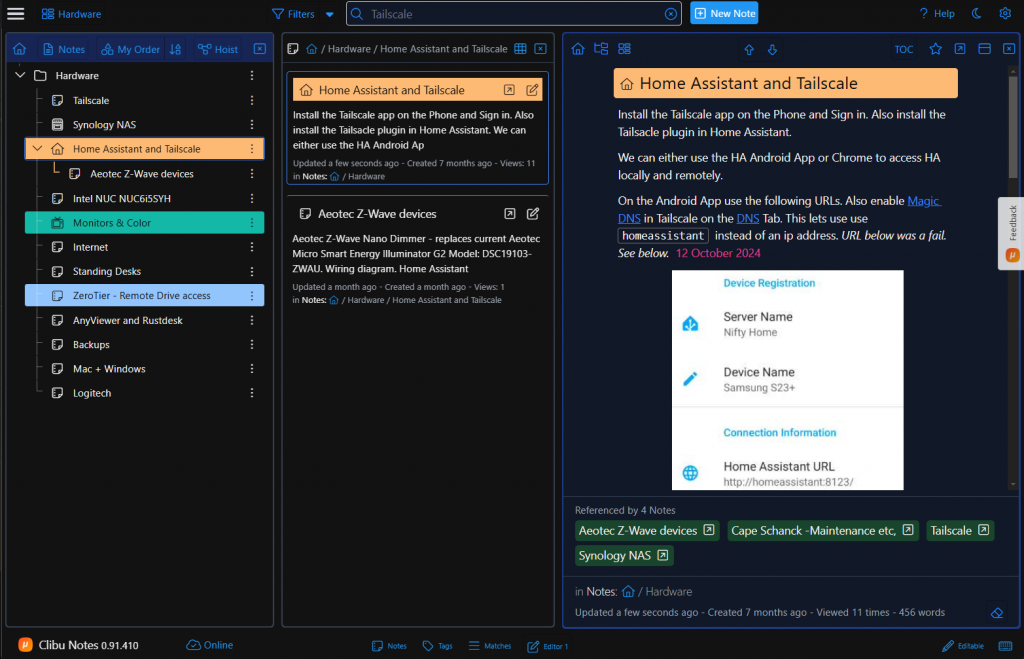
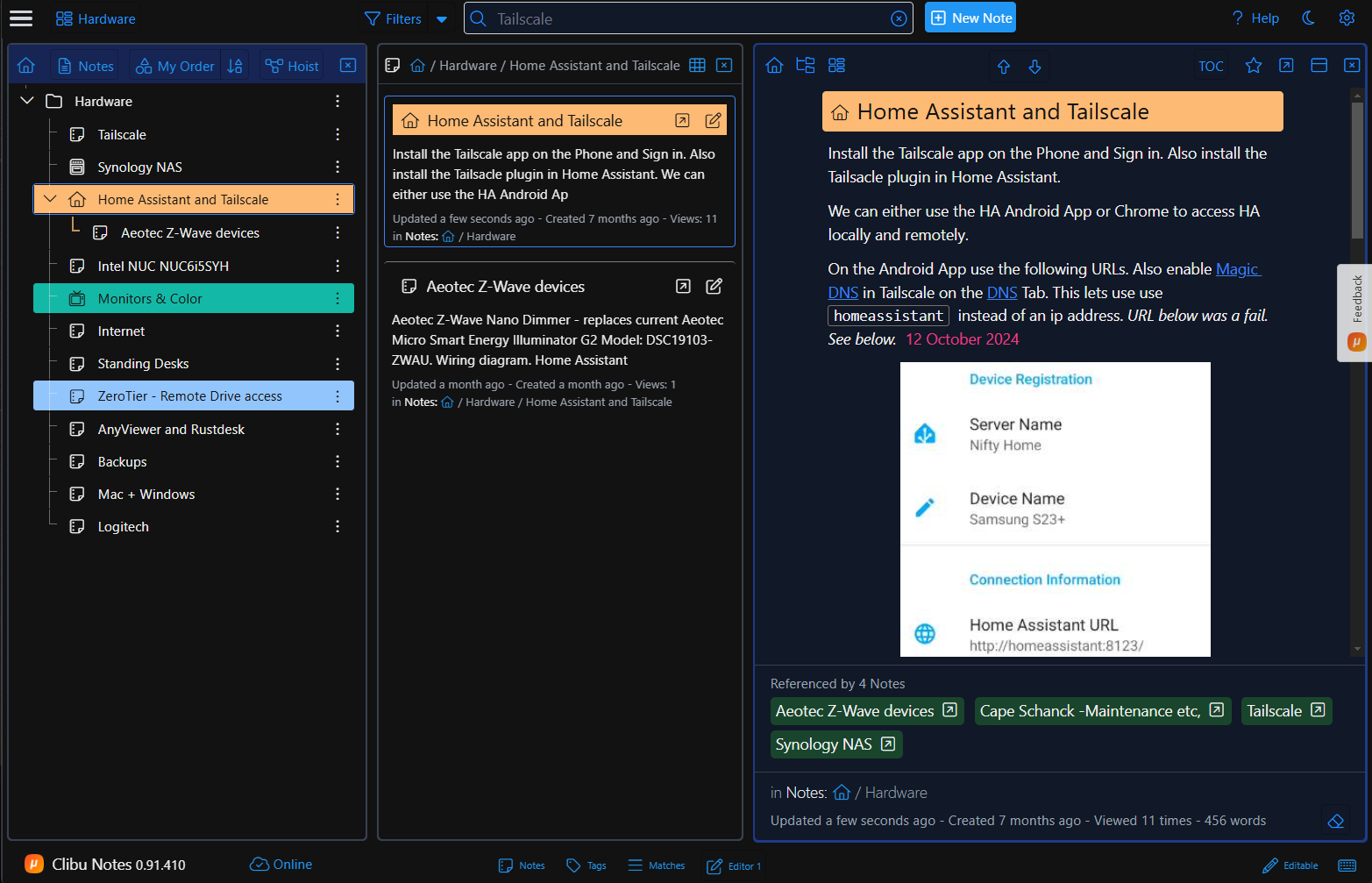
Clibu Notes Dark mode theme

Now that dark mode has arrived I’ve switched to using it all the time. It is quite interesting that once you get used to dark mode, you want it available in all of the applications you use.

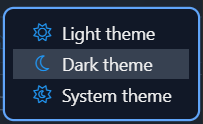
By default Dark mode uses your operating system theme preference to determine whether to use light or dark mode. You can override this using the Theme menu.

Theme menu

The Theme menu is available on the Settings menu. On larger screens there is also a button at the right of the top navigation bar to access the Theme menu.

Implementing dark and light themes now opens up the possibility of creating other themes in the future.

As always comment below or use the Feedback option in Clibu Notes to get in touch.

– Neville